[NUC] エクスプレスBIOSを使用したリモートまたはサイレントIntel NUC BIOSアップデートの実行方法

解決方法

ユーザーの介入が必要なく、リモートBIOSアップデートに便利なバッチファイルからExpress BIOSアップデートを実行します。

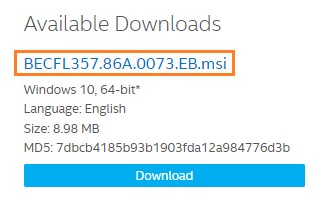
  1. インテルNUC用のExpress BIOSアップデートファイル(.EB.msi)をダウンロードしてください。例:

Available downloads

  1. 7-Zipなどのファイルを抽出できるユーティリティをダウンロードしてインストールしてください。

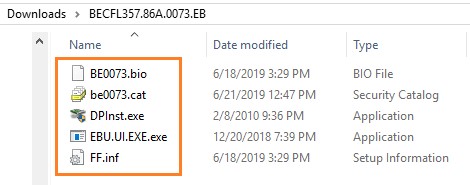
Example

  1. フォルダにファイルを抽出します。
  2. メモ帳などのテキストエディタを開き、次の2行だけを含むバッチファイルを作成してください:
    • DPInst.exe /q /f /se
    • Shutdown /r /t 10 /c "Upgrading the BIOS. The computer will reboot in 10 seconds" /f /d p:0:0
    • コマンドラインスイッチのノート
DPInst.exe
/qquietInstallフラグをONに設定し、DPInstとWindowsが生成するウィザードページ、ユーザーダイアログボックス、およびその他のユーザーメッセージの表示を抑制します。
Devcon
enable/disable hardware-idEnables or disables a device that matches the specified hardware ID.
findall [hwids|classes|devices|drivers|bus]Lists all devices, device setup classes, or device drivers on a local or remote computer. The findall command uses the DevCon FindAll function to search for devices that match the specified hardware IDs, device setup classes, device instance IDs, or device driver names.
restart hardware-idRestarts a device that matches the specified hardware ID.
status hardware-idDisplays the status of a device that matches the specified hardware ID.
update driver-inf [class-device|device-id|hw-id] [inf-name]Updates the driver for a device that matches the specified hardware ID, device instance ID, or device setup class. This command uses the specified INF file.
Dpinst
/qRuns DPInst in quiet mode, which suppresses all user interface (UI) except for UI that is necessary to display error messages. This is the default mode.
/dDeletes all driver packages that are installed by DPInst from the driver store.
/lmLimits the installation to one INF file per device. This is the default behavior.
/fSets the forceIfDriverIsNotBetter flag to ON, which configures DPInst to install a driver on a device even if the driver that is currently installed on the device is a better match than the new driver.
/seSets the suppressEulaPage flag to ON, which configures DPInst to suppress the display of a EULA page.
Shutdown
/rRestarts the computer after shutdown.
/t xxSets the time-out period or delay to XXX seconds before a restart or shutdown. This causes a warning to display on the local console. You can specify 0-600 seconds. If you don't use /t, the time-out period is 30 seconds by default.
/c "comments"

Enables you to comment in detail about the reason for the shutdown. You must first provide a reason by using the /d option. You must enclose comments in quotation marks. You can use a maximum of 511 characters.

You're about to be signed out

/fシステムの再起動またはシャットダウンの理由をリストします。値 p は、再起動またはシャットダウンが計画されていることを示します。
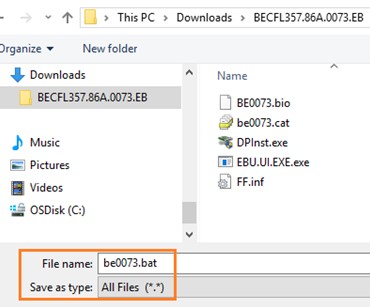
  1. バッチファイルを保存します。
    • 抽出されたファイルと同じフォルダに保存します。
    • ファイル拡張子は .bat である必要があります。
    • すべてのファイル (* .*)としてファイルを保存します。

ファイルを保存

  1. すべてのファイルとともにフォルダをコピーします。
  2. 管理者モードのコマンドプロンプトを開きます。
    • Windows ボタンをクリックして、コマンドプロンプトを入力します。
    • コマンドプロンプトを右クリックし、管理者として実行するを選択します。
  1. コマンドウィンドウで、BIOSアップデートファイルと.batファイルが含まれているフォルダに移動します
  2. 完全な.batファイル名入力し、Enterを押してアップデートプロセスを開始します。
    • Windowsが再起動し、BIOSアップデートプロセスが開始されます。
    • アップデートが完了すると、システムがWindowsを起動します。

システムドライブの暗号化を有効にするためにBitLockerを使用している場合:

  • BIOSアップデートを実行する際に回復キーを入力する必要があるなど、問題が発生する可能性があります。
  • .BATファイル(下記のサンプル)を変更して、BitLockerを一時的に中断して(1回の再起動後に再開)、問題を回避できます。
ourier New,Courier,monospace;">manage-bde -protectors -disable C: -RebootCount 1
  • DPInst.exe /q /f /se
  • Shutdown /r /t 10 /c "BIOSのアップグレード中です。10秒後にコンピュータが再起動します" /f /d p:0:0
  • 詳細については、コマンドプロンプトを使用してBitLockerを一時停止する方法を参照してください。

  • BIOSをアップグレードするには、次の手順に従ってください。
    1. 最新のBIOSバージョンをダウンロードして、USBドライブに保存します。
    2. コンピューターを再起動し、BIOSのセットアップに入ります。
    3. ブートデバイスの順序を変更し、USBドライブを最初に起動するようにします。
    4. USBドライブから起動し、BIOSのアップグレードを開始します。
  • BIOSアップグレードに必要なファイルを含む.msiファイルをダウンロードします。
  • .msiファイルからファイルを抽出することができるツールである、Lessmsiをダウンロードします。
  • Lessmsiを使用して、.msiファイルからファイルを抽出します。

    Example

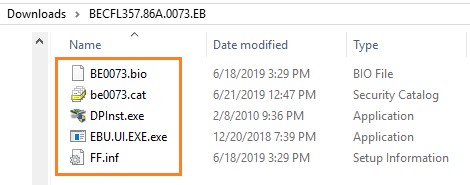
  • フォルダにファイルを抽出します。
  • Notepadなどのテキストエディタを開いて、次の2行だけを含むバッチファイルを作成します。
    • DPInst.exe /q /f /se
    • Shutdown /r /t 10 /c "Upgrading the BIOS. The computer will reboot in 10 seconds" /f /d p:0:0
    • コマンドラインスイッチの注意点
      DPInst.exe
      /q
      Shutdown
      /s システムをシャットダウンします。
      /r システムを再起動します。
      /t xxx シャットダウンまたは再起動が実行されるまでの待機時間を指定します。 xxx は秒数で指定します。
      /c "comment" シャットダウンまたは再起動の理由を指定します。
      /a ログオフ、シャットダウン、および再起動の処理をキャンセルします。
      /r コンピュータをシャットダウンした後に再起動します。
      /t xx 再起動またはシャットダウンの前にXXX秒のタイムアウト期間または遅延を設定します。これにより、ローカルコンソールに警告が表示されます。0〜600秒を指定できます。/tを使用しない場合、タイムアウト期間はデフォルトで30秒になります。
      /c "コメント"

      シャットダウンの理由について詳細にコメントすることができます。最初に/dオプションを使用して理由を提供する必要があります。コメントは引用符で囲む必要があります。最大511文字まで使用できます。

      注意:以下のテキストは機械翻訳によるものです。

      バッチファイルの作成方法

      Windowsオペレーティングシステムでは、バッチファイルを使用して、複数のコマンドを自動化することができます。ここでは、バッチファイルを作成する方法を説明します。

      ステップ1:テキストエディタを開く

      Windowsには、メモ帳などのテキストエディタが標準で搭載されています。開始メニューから「メモ帳」を検索し、クリックして開きます。

      ステップ2:コマンドを書く

      バッチファイルに含めたいコマンドを入力します。ここでは、システムを再起動するためのコマンド例を示します。

      @echo offshutdown /r /t 0

      最初の行は、コマンドの出力を非表示にするために必要です。2番目の行は、シャットダウンコマンドを使用して、システムを再起動します。

      ステップ3:ファイルを保存する

      ファイルメニューから「名前を付けて保存」を選択します。ファイル名には「.bat」の拡張子を付ける必要があります。例えば、restart.batという名前にすることができます。

      ステップ4:バッチファイルを実行する

      ファイルをダブルクリックするだけで、バッチファイルを実行できます。指定したコマンドが自動的に実行されます。

    • ファイル拡張子は .bat でなければなりません。
    • すべてのファイル(*.*) としてファイルを保存します。

      ファイルを保存する

    • すべてのファイルが含まれるフォルダを、ターゲットのIntel NUCにコピーします。
    • 管理者モードでコマンドプロンプト開きます(PowerShellはサポートされていません):
      • Windowsボタンをクリックして、コマンドプロンプトと入力します。
      • コマンドプロンプト右クリックし、管理者として実行を選択します。
    • コマンドウィンドウで、BIOS更新ファイルと.batファイルが含まれるフォルダに移動します。
    • 完全な.batファイル名入力し、Enterキーを押して更新プロセスを開始します。
      • Windowsが再起動し、BIOS更新プロセスが開始されます。
      • BIOSアップデートは、システムの安定性とパフォーマンスを向上させるために重要です。以下に示す手順に従って、Windows 10で安全かつスムーズにBIOSアップデートを実行できます。

        1. BIOSアップデートをダウンロードし、保存先を覚えておいてください。
        2. BitLockerを有効にしている場合は、一時的に無効にする必要があります。
        3. セキュアブートを有効にしている場合は、一時的に無効にする必要があります。
        4. システムを再起動し、BIOSの設定に入ります。
        5. BIOSアップデートを実行します。各メーカーの手順に従ってください。
        6. 更新が完了したら、システムはWindowsを起動します。

        システムドライブで暗号化を有効にするためにBitLockerを使用している場合:

        • BIOSアップデートを実行する際に、起動時に回復キーを入力する必要があるなどの問題が発生する場合があります。
        • .BATファイルを変更して、一時的にBitLockerを一時停止し(1回の再起動後に再開)、問題を回避できます。
          • manage-bde -protectors -disable C: -RebootCount 1
          • DPInst.exe /q /f /se
          • Shutdown /r /t 10 /c "BIOSのアップグレード。10秒後にコンピュータが再起動します" /f /d p:0:0

        詳細については、How to Suspend BitLocker Using Command Promptを参照してください。

        サポートにお問い合わせ
        上記の情報で問題が解決しない場合は、お問い合わせください。
        • Above information might be partly or entirely quoted from exterior websites or sources. please refer to the information based on the source that we noted. Please directly contact or inquire the sources if there is any further question and note that ASUS is neither relevant nor responsible for its content/service
        • This information may not suitable for all the products from the same category/series. Some of the screen shots and operations could be different from the software versions.
        • ASUS provides the above information for reference only. If you have any questions about the content, please contact the above product vendor directly. Please note that ASUS is not responsible for the content or service provided by the above product vendor.
      • 採用情報

        Community