Related Topics
[Wireless Router] How to set up AdGuard DNS with an ASUS router?
Introduction
1. Create an AdGuard DNS account
2. Set up AdGuard DNS on ASUS router
3. Set up AdGuard DNS in SDN/Guest Network Pro/Smart Home Master
4. How to overview the traffic status and the blocked requests?
5. How to customize the AdGuard DNS settings?
6. How establish a DNS server?
7. How to customize the blocklist?
8. How to set up AdGuard DNS Parental control?
If you have the following need, you might consider using AdGuard DNS.
Block Ads: Say goodbye to annoying ads cluttering your browsing experience.
Clean browsing for kids: Keep your kids away from unwanted contents by blocking access.
Protect Privacy: Keep your online activities more private by blocking trackers and malware domains.
Simplify Security: Reduce the risk of malware infections by blocking access to known malicious websites.
Improve Speed: Enjoy faster browsing by skipping the loading of ad-heavy content.
What is AdGuard DNS?
AdGuard DNS is a Domain Name System (DNS) service that offers ad-blocking and privacy protection features. AdGuard DNS works by filtering out requests to known advertising, tracking, and malware domains at the DNS level, before a connection is even established. This helps to block ads and prevent your device from loading potentially harmful content.
Prepare
1. Supported on WiFi 7 routers with firmware later than 3.0.0.6.102.34713, and on ExpertWiFi series with firmware later than 3.0.0.6.102.44949.
For the latest firmware update, please refer to the FAQ below.
[ExpertWiFi] How to update the firmware of ExpertWiFi router
[Wireless Router] How to update the firmware of your router to the latest version
2. Due to region restrictions, some of the regions may not support this feature.
3. Third-party login and two-factor authentication (2FA) are currently not supported on the router. Please sign in using your AdGuard account and ensure that 2FA is disabled before logging in.
1. Create an AdGuard DNS account
*To use this feature, you must create an AdGuard Account first.
a. Connect your device (laptop or phone) to the router via wired or WiFi connection and enter your router LAN IP or router URL http://www.asusrouter.com to the WEB GUI.
b. Enter your login username and password on the login page and then click [Sign In].
c. Go to [ Parental Controls ]> [ AdGuard ] and enable AdGuard.
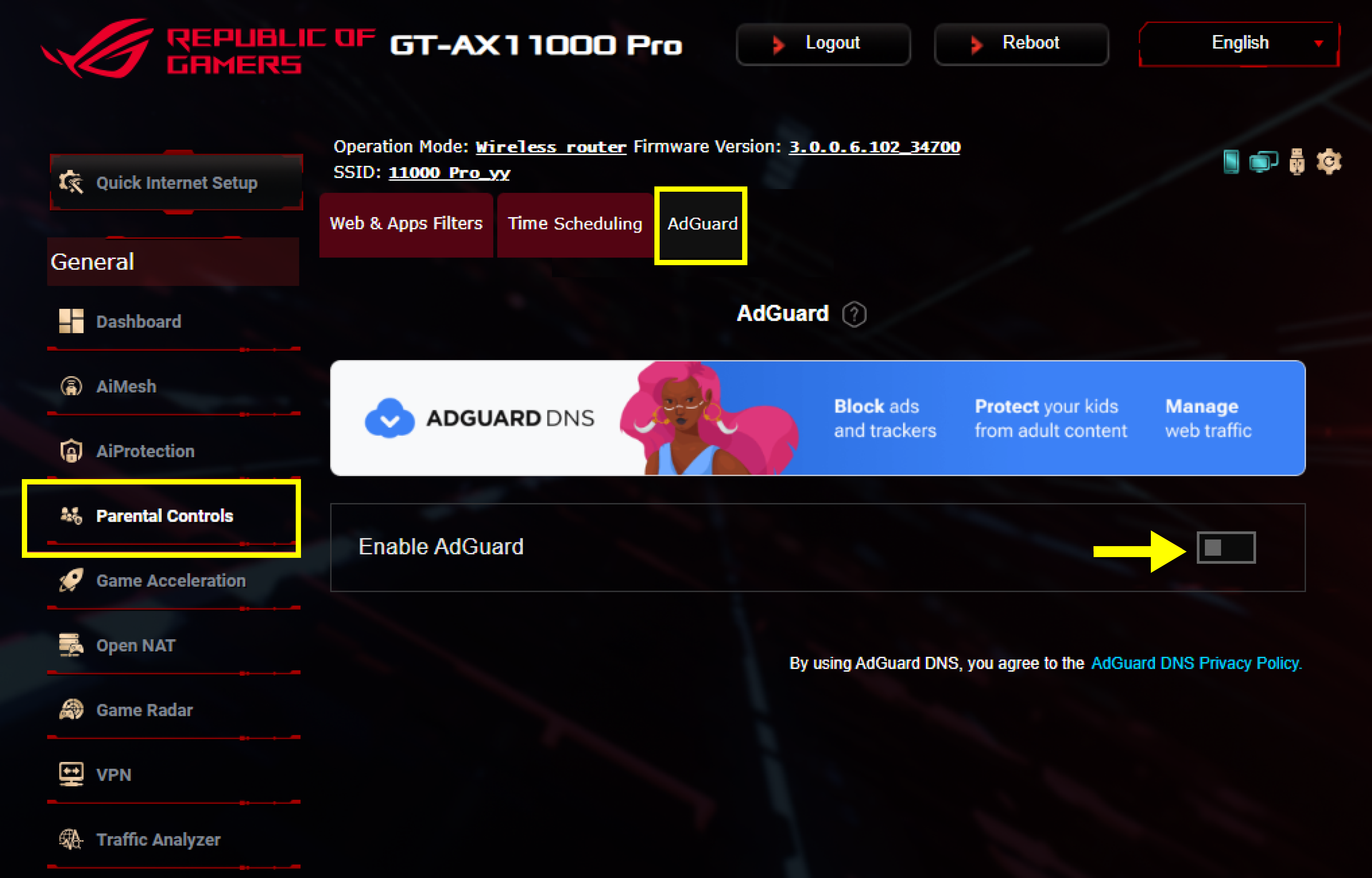
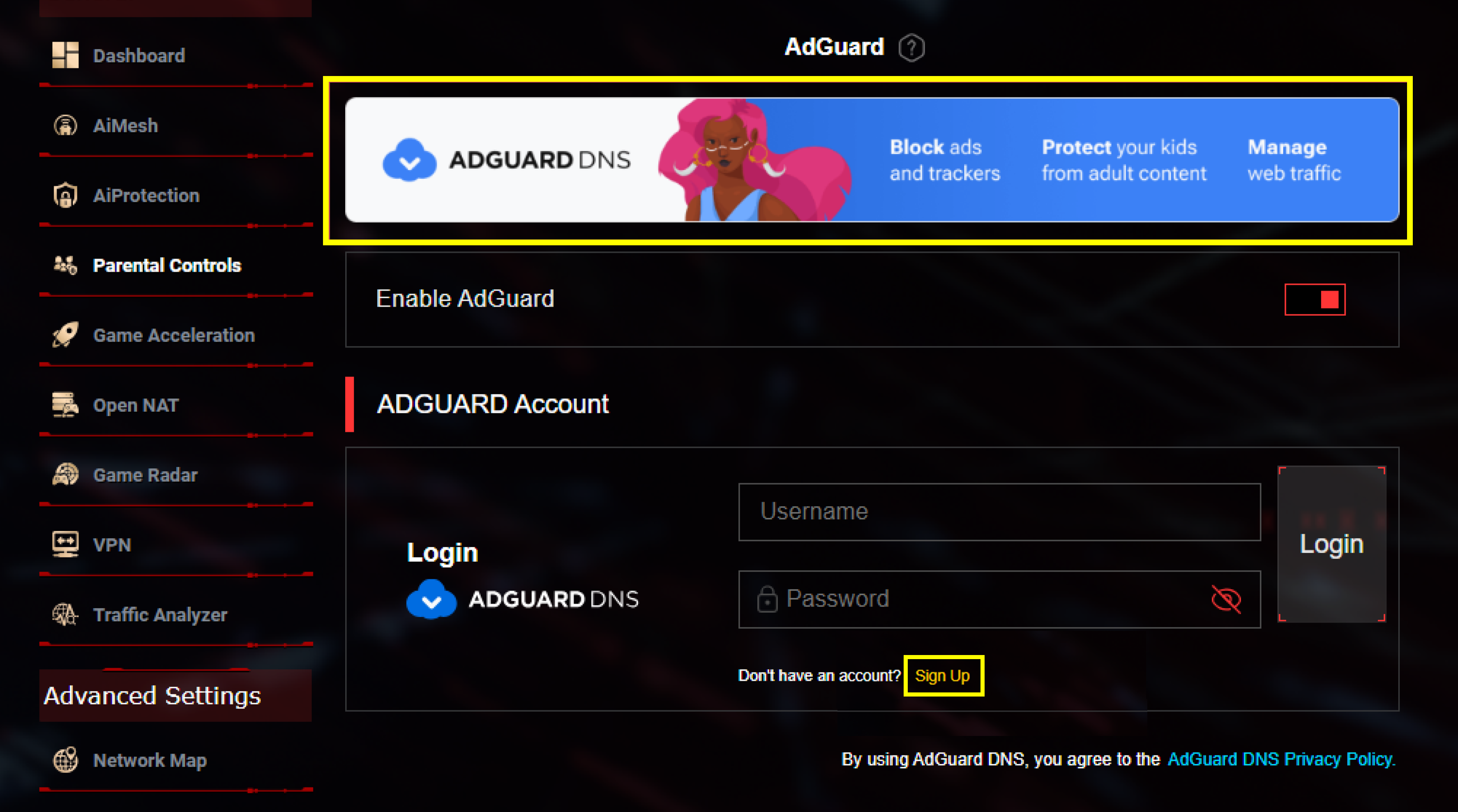
d. Click the banner or [ Sign up ] to create an AdGuard DNS account.
2. Set up AdGuard DNS on ASUS router
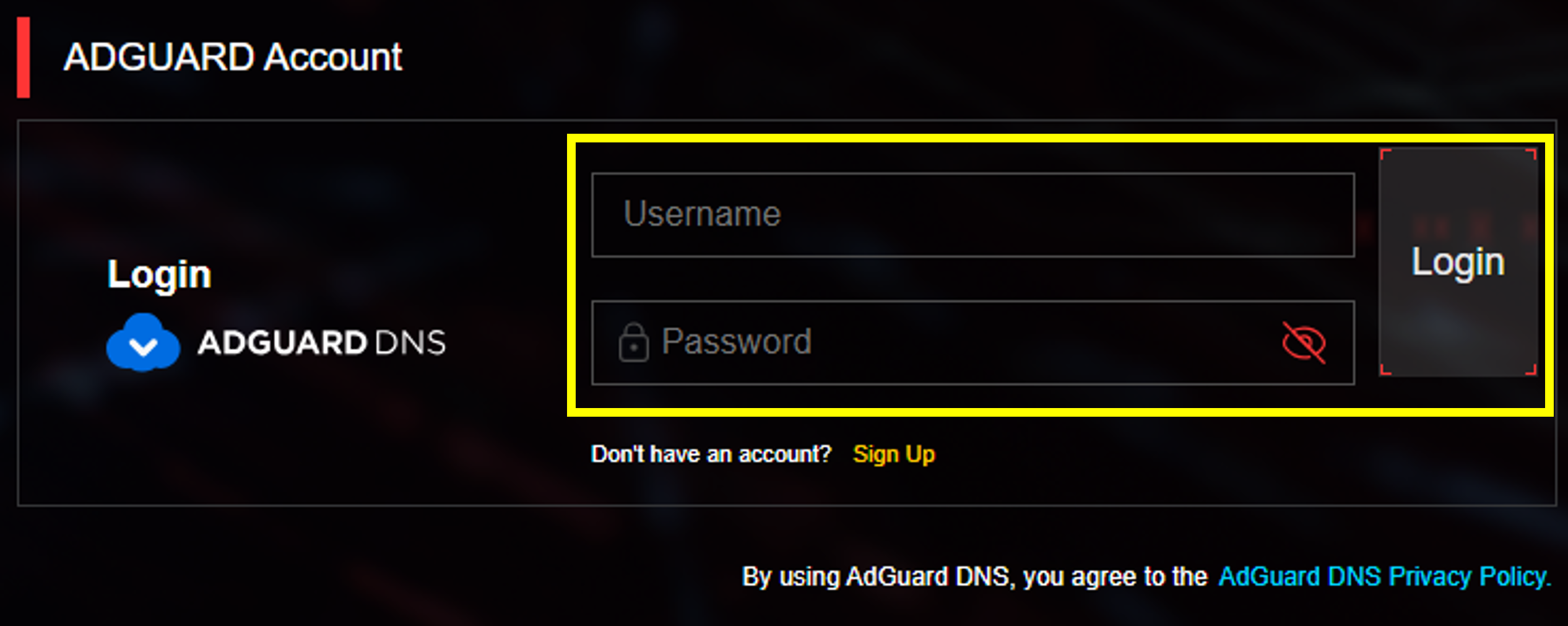
a. Sign in to your AdGuard account.
b. Click [ Add profile ].
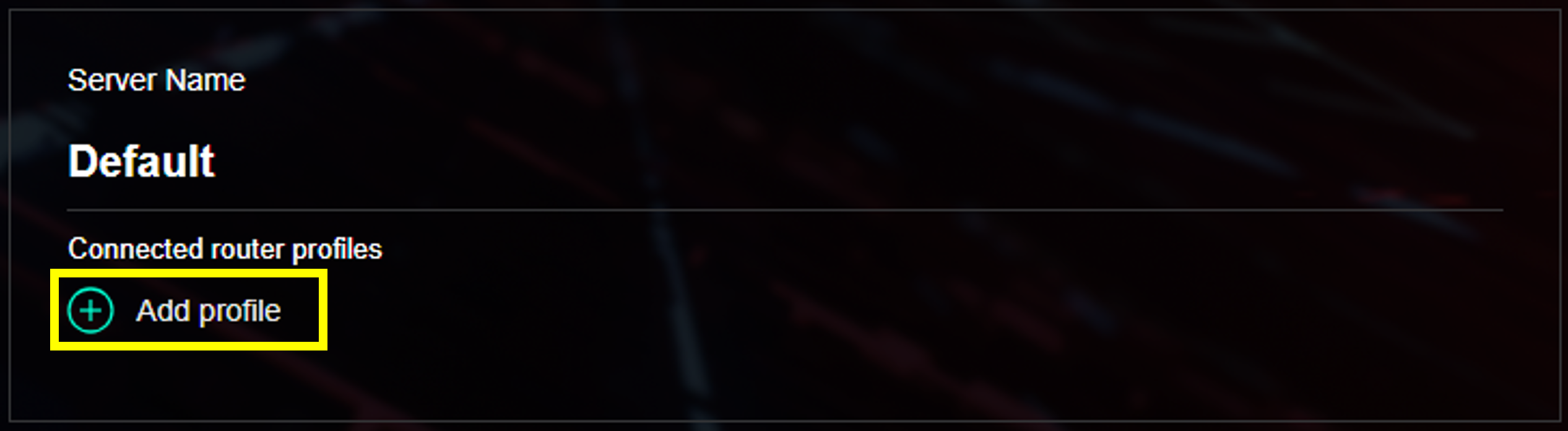
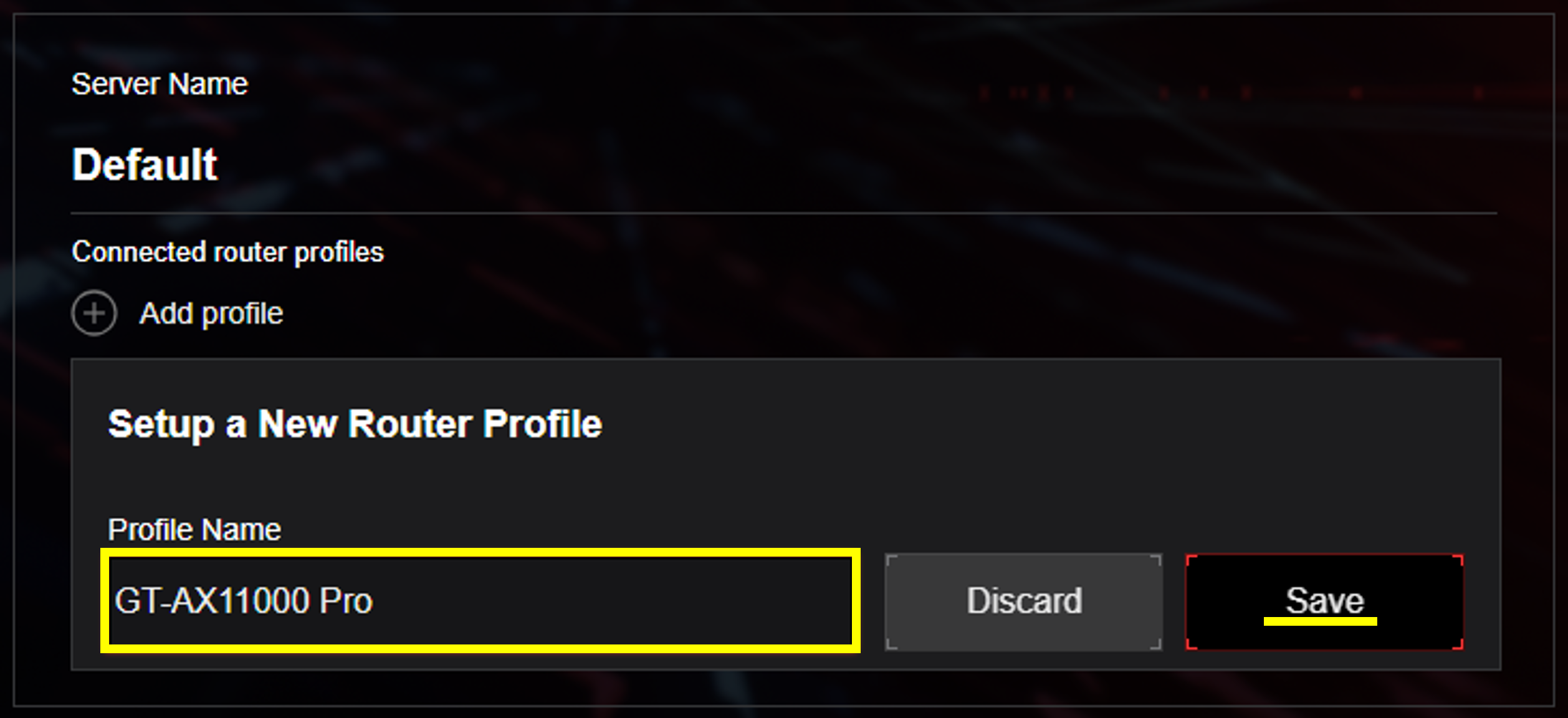
c. Name your profile and save it. Please make sure you click [ Apply all settings ] after saving.
The router will apply the DNS rule based on default setups.
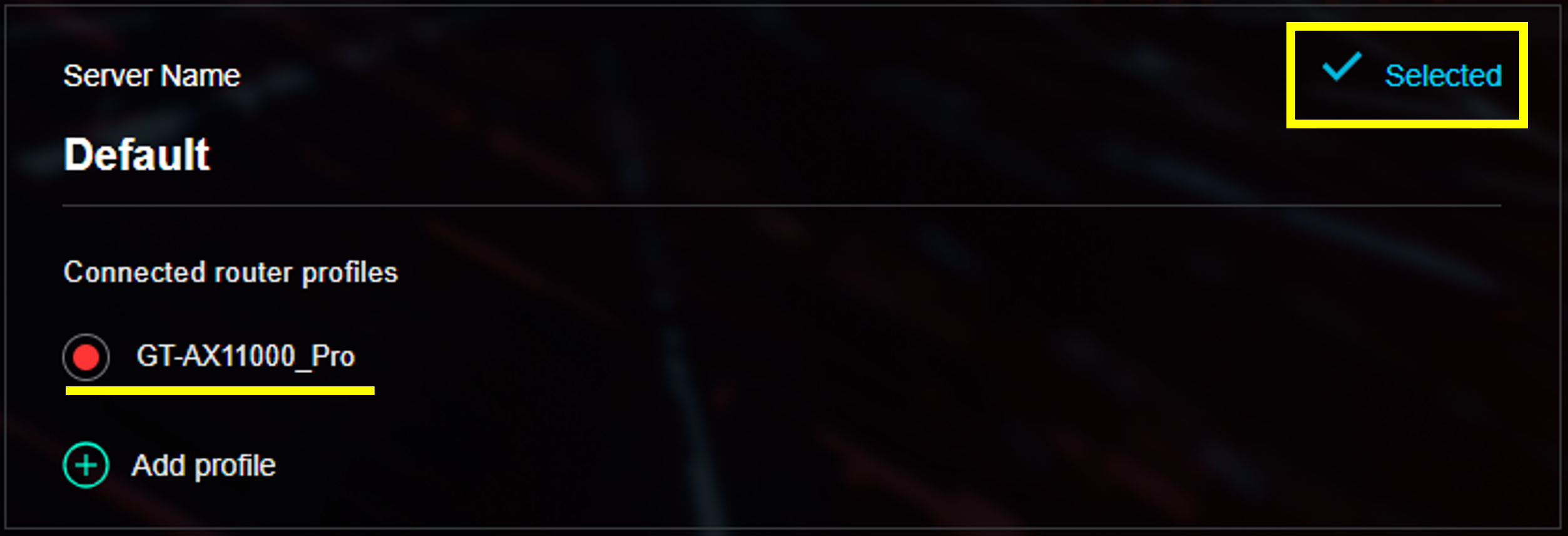
d. You could find a [ Selected ] mark on the right when successfully applying.
3. Set up AdGuard DNS in SDN/Guest Network Pro/Smart Home Master
AdGuard DNS could set up separately and concurrently with different SSID by using SDN/Guest Network Pro/Smart Home Master. Each network profile could apply their own AdGuard DNS settings based on your need. We take Smart Home Master as an example.
a. Go to [ Network ] and choose [ Kid’s Network ].

b. Navigate to [ Enable AdGuard ] and enable it. Then sign in to select a router profile for applying the AdGuard DNS settings in current network.
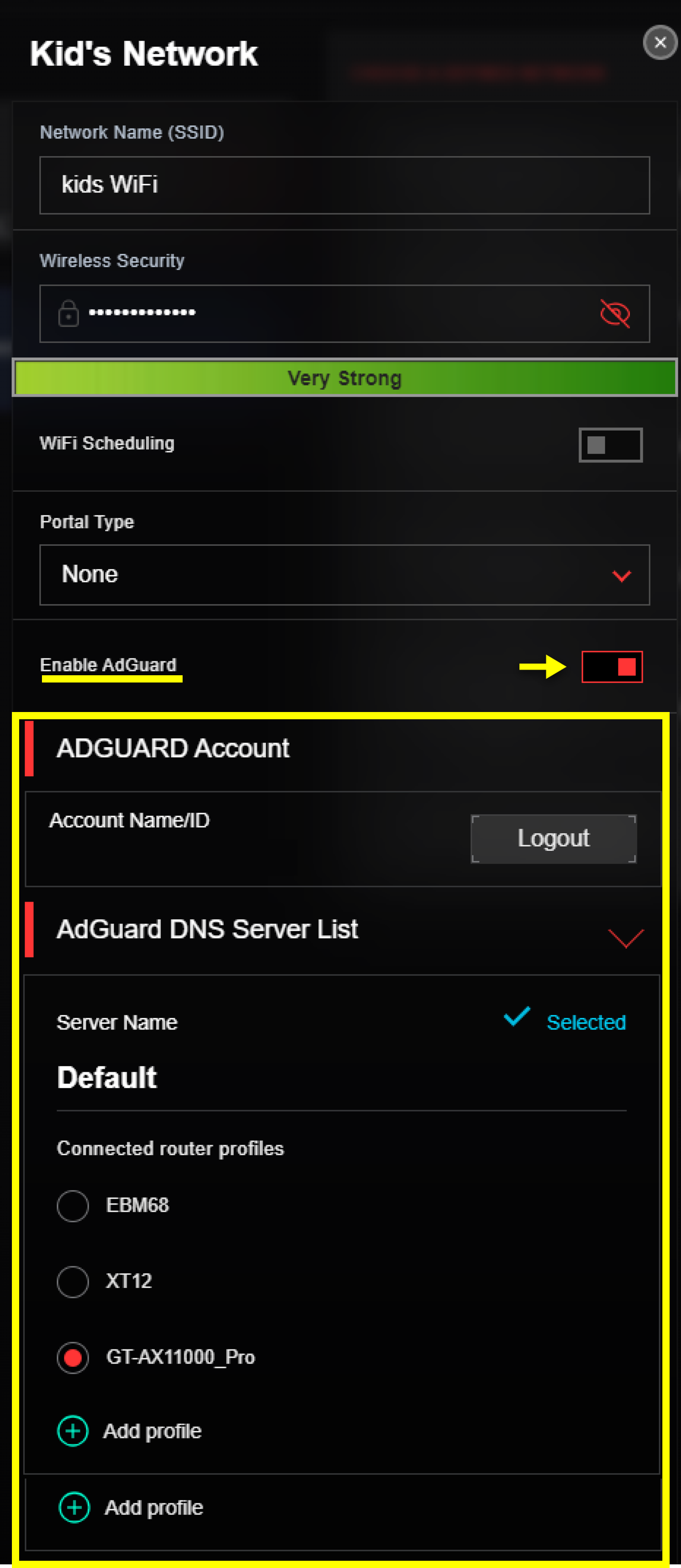
Note: In some of the network profiles, you need to find [ Enable AdGuard ] in [ More Config ] sheet.

4. How to overview the traffic status and the blocked requests?
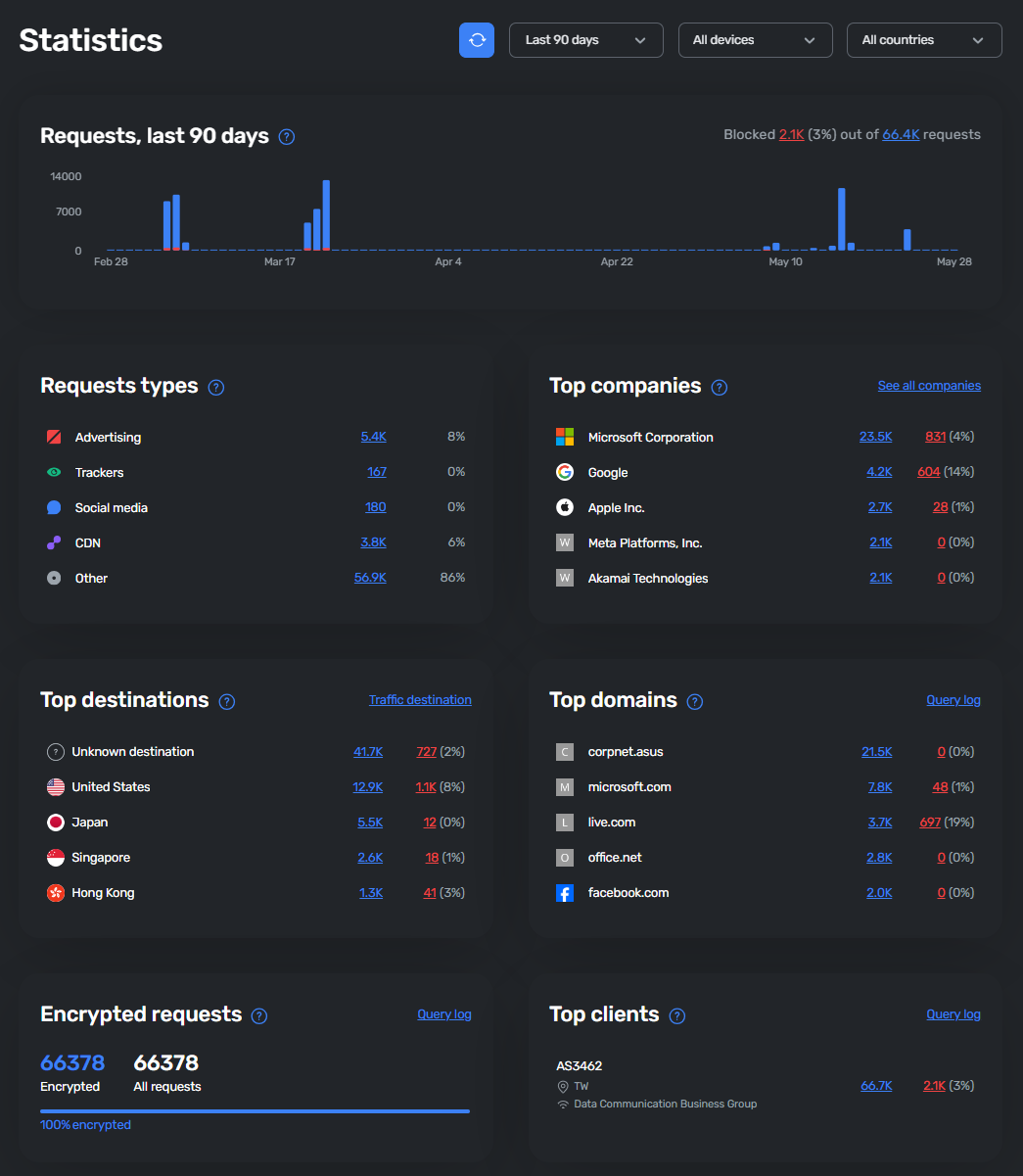
By clicking [ Statistic ], we will guide you to AdGuard DNS website. You could see the overview requests that monitor and blocked by AdGuard DNS

5. How to customize your DNS settings?
Click [Advanced Settings], we will guide you to AdGuard DNS website for more settings.

You should be able to do the following settings:
a. Create and manage the server.
b. Delete connected device.
c. Set up block list, DNS filter, browsing security, and more.
6. How to establish a new DNS server?
*Please login to AdGuard DNS website for this operation.
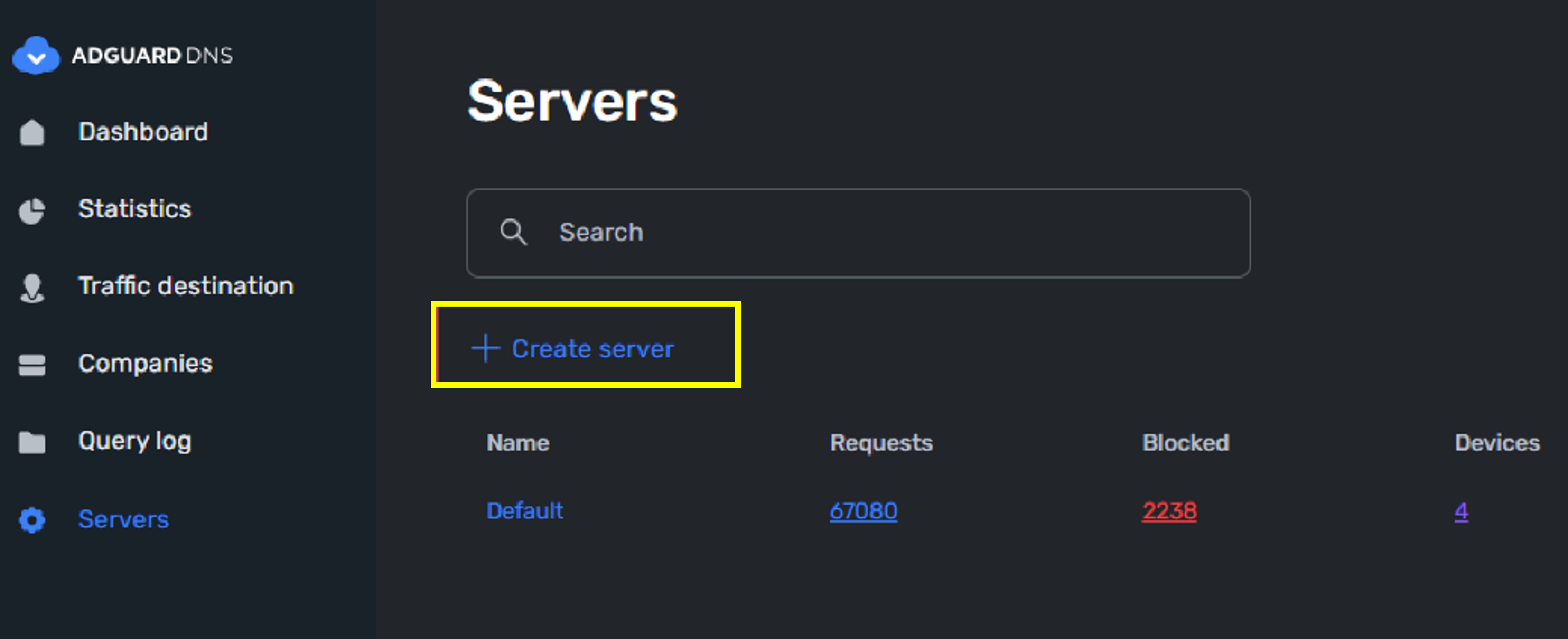
a. If you prefer not to use the default server, you could go to [ Servers ] and select [ Create server ].
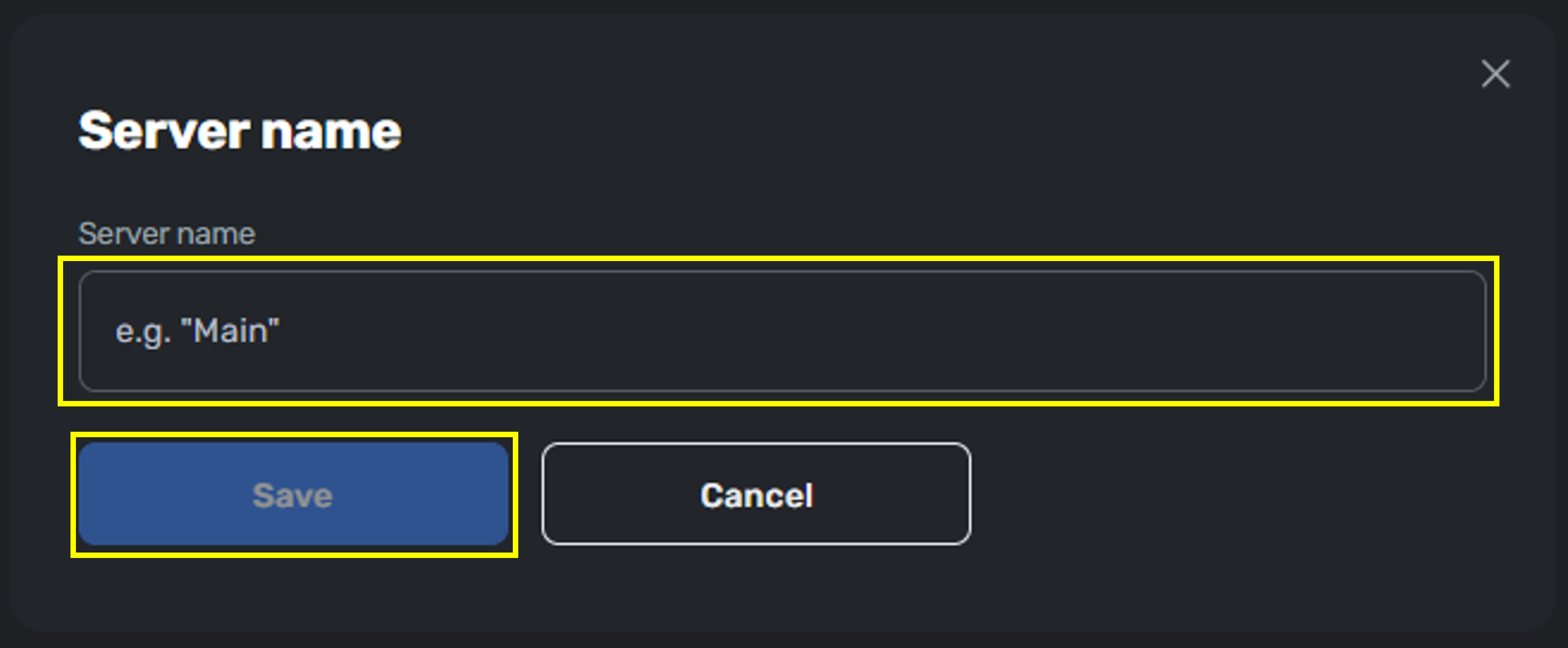
b. Simply name your server to complete the setups.
c. Once you established a new server, you could see the new option on ASUS router.
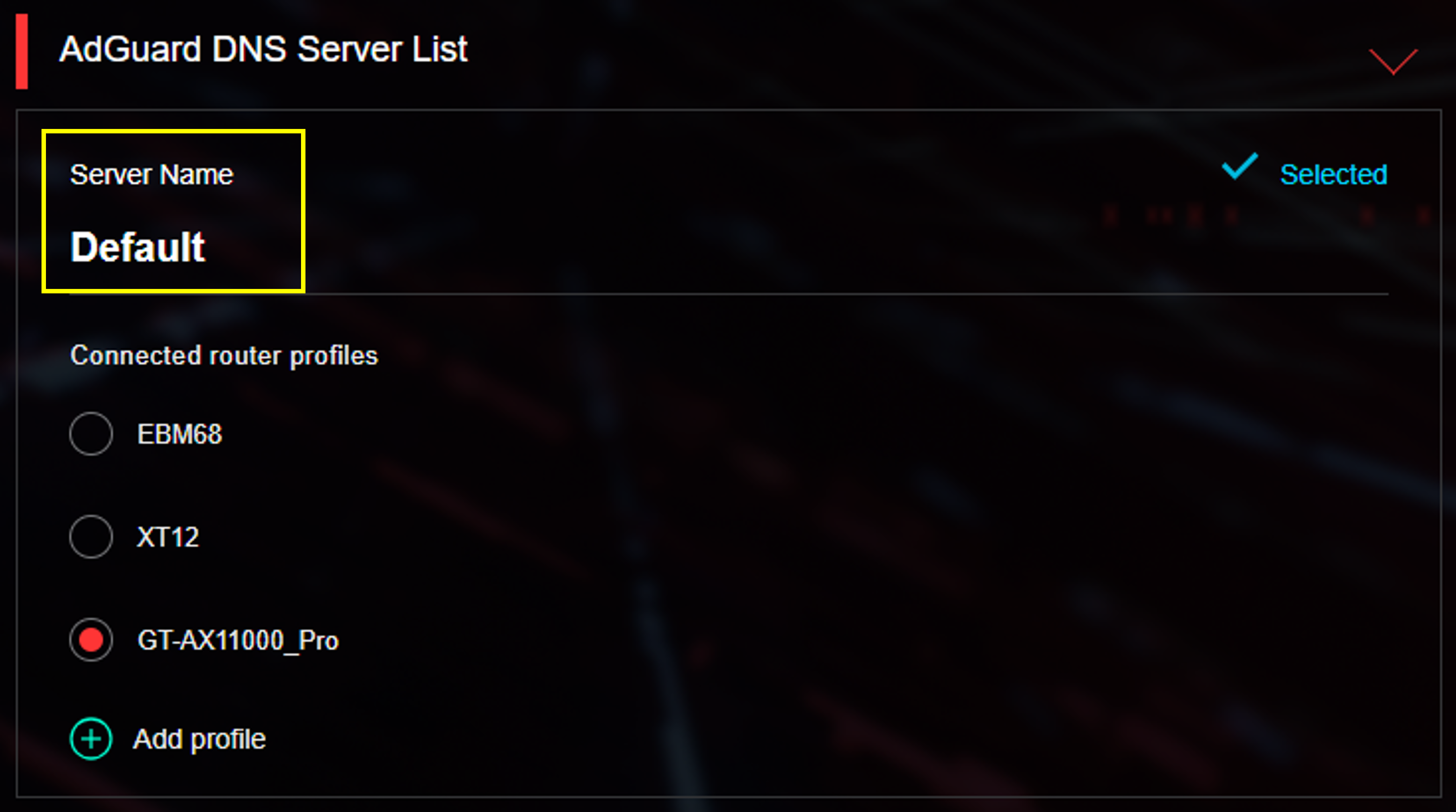
*To select and apply the new server settings to your router, please add a profile under this server.
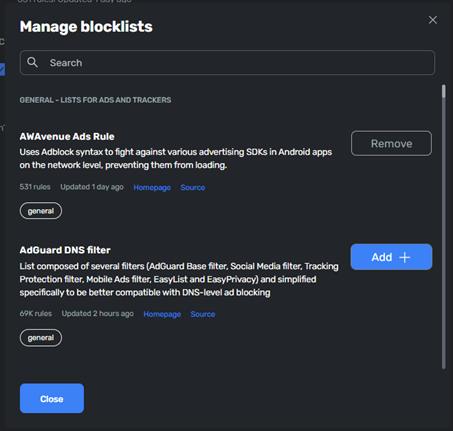
7. How to customize the blocklists?
*Please login to AdGuard DNS website for this operation.
a. Go to [ Servers ] > [ Server Settings ] and navigate to [ Blocklists ].
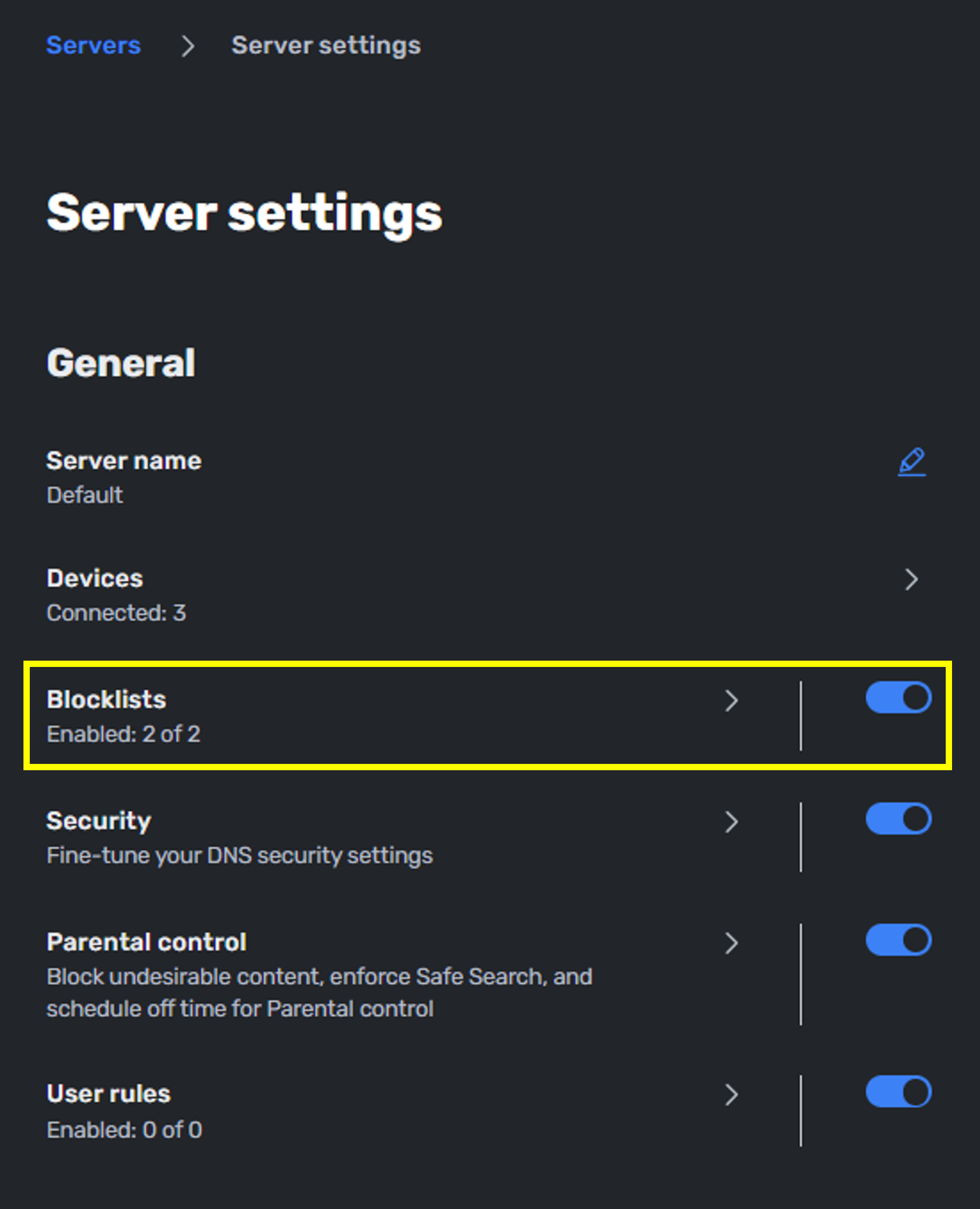
b. You could edit the blocklists for each server. AdGuard provides comprehensive lists to meet different scenarios.
8. How to set up AdGuard DNS Parental control?
*Please login to AdGuard DNS website for this operation.
AdGuard DNS Parental Control provides flexible filtering to help create a safer online environment for children. It can block adult and shocking content, enforce safe search across major search engines, apply YouTube Restricted Mode, and restrict access to selected services, apps, games, or website categories—allowing you to tailor internet access to your household’s needs with ease.
a. Go to [ Servers ] > [ Server Settings ] and navigate to [ Parental control ].

b. Click the Parental Control, and you can find the customizable options for it.
- Block adult websites: Block websites with porn, gore, and other shocking content.
- Safe search: Hide age-inappropriate search results in Google, Bing, DuckDuckGo, Yandex, Pixabay, Brave, and Ecosia.
- YouTube restricted mode: Enforce safe search and hide comments on YouTube.
- Block popular services and websites: Restrict access to selected websites, apps, and games.
- Block websites by category: Restrict access to selected website categories.

c. While the first three options apply only with toggle, the [ Block popular services and websites ] and [ Block websites by category ] allow further setup for the services and websites. You could easily find the popular option in their search section.

d. AdGuard DNS also provides an [ Inactivity schedule ] to pause the Parental Control, which can be flexsible to you to allow your kid to watch videos or play games in a specific period.

How to get the (Utility / Firmware)?
You can download the latest drivers, software, firmware and user manuals in the ASUS Download Center.
If you need more information about the ASUS Download Center, please refer this link.