[Wireless Router] How to change theme in ASUS Router App?
ASUS Router App supports app theme change, including Techno Blue, Gaming Red, Simplicity White and OLED Black.
After quick Internet setup, your app shows a default theme, depending on which model series you have. You can change the app’s theme any time.
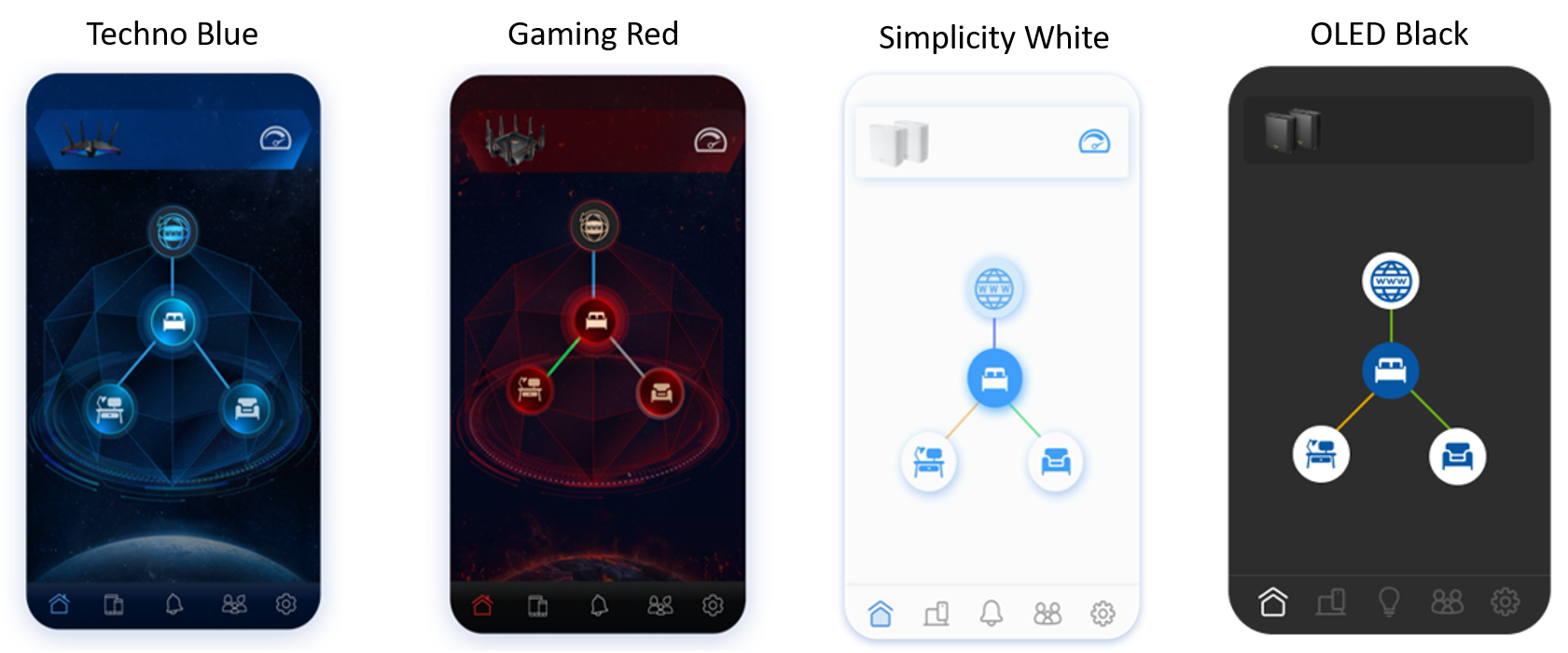
Note: Please make sure to install the latest version of the ASUS Router App on your mobile device.
For detailed installation instructions, you can refer to the FAQ: [Wireless Router] How to update the firmware of your router to the latest version via ASUS Router App?
How to change the app theme?
If your ASUS router is already set up, please connect your mobile device to the ASUS router's WiFi and then open the ASUS Router App, or open the ASUS Router App to use remote connection, and follow the steps below to change the theme:
The following uses an Android device as an example
1. Launch Router App and log in.
2. Tap burger icon on the upper left in Home page.

3. Tap [App Settings] in More section > [Theme].

4. Tap the theme you want to switch to, and the settings will change.

FAQ
1. Why can't I find the 'Theme' option in the ASUS router app?
a. Please make sure your ASUS router firmware and router app are updated to the latest version.
b. The options from the previous version were under 'Themes' in the 'More' category.
As shown in the example below

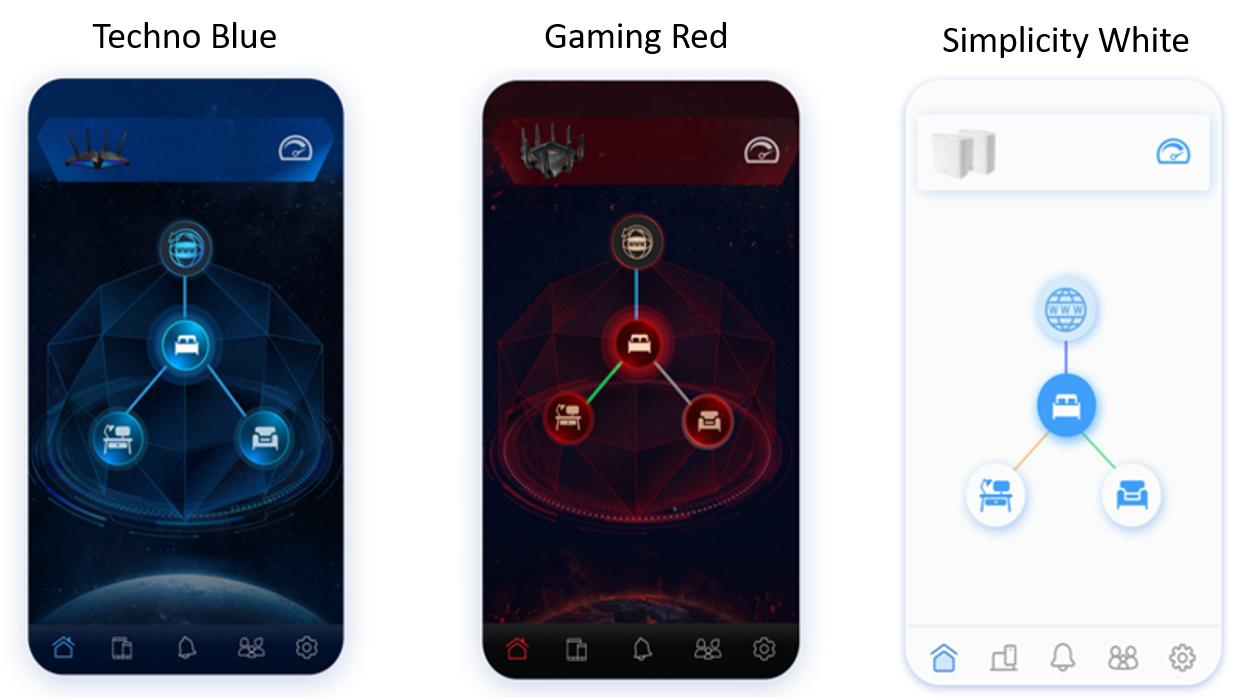
2. What are the default themes for different models of routers?
Techno Blue:RT, TUF, Lyra, 4G, DSL series
Gaming Red:GT, GS series
Simplicity White:ZenWiFi series
How to get the (Utility / Firmware)?
You can download the latest drivers, software, firmware and user manuals in the ASUS Download Center.
If you need more information about the ASUS Download Center, please refer this link.