[NUC] Failure When Updating LAN Drivers for NUC 11 Pro Kits & Mini PCs and NUC11TN
Resolution
- Confirm the BIOS is updated and that LAN is enabled.
- Confirm Windows* updates are up to date.
- Check if the operating system is fully activated, and LAN driver are up to date.
- Make sure that LAN drivers are visible in the Device Manager.
If the issue still occurs, perform a clean driver installation.

Clean driver installation steps:
- Download the latest version of the drivers
- Disconnect the equipment from any internet connection.
- Go to Device Manager and locate the current drivers. Right-click it, and select uninstall, when selecting this option, check the mark box that says delete drivers from this equipment, and proceed with the uninstallation.
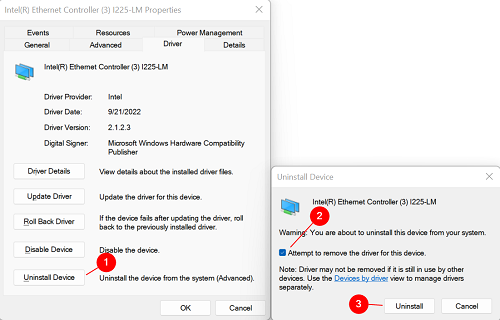
- Repeat this process as many times as needed until the options of uninstalling and deleting drivers are no longer available to mark.
- Restart the unit.
- Then install the latest LAN driver and reconnect the system to the Internet.
- Run the Driver & Support Assistant ( DSA) and check if an update is needed.
- Using the above process, confirm the LAN driver is the latest version using Device Manager.