関連トピック
- [スマートグラス][ASUS AirVision M1] ASUS AirVision M1ウェアラブルディスプレイの概要
- [スマートグラス] ウェアラブルディスプレイを使用する際の安全上の注意とメンテナンス方法
- [スマートグラス][ASUS AirVision M1] インサートレンズ(プリスクリプションレンズ/処方箋レンズ)に関するよくあるご質問(FAQ)
- [スマートグラス][ASUS AirVision M1] ASUS AirVision M1 に関するよくあるご質問(FAQ)
- [スマートグラス][ASUS AirVision M1] ファームウェアの更新方法
- [スマートグラス][ASUS AirVision M1] ASUS AirVision M1 のトラブルシューティング
[スマートグラス] ASUS AirVision アプリに関するよくあるご質問(FAQ)
Q1: 特定の仮想ディスプレイへウィンドウを素早く移動させるにはどうすればよいですか?
A1: 「カーソル追従」機能を有効にしてください。次に、プログラムウィンドウを最大化されていない状態(元のサイズ)に戻します。
ウィンドウのタイトルバーを左クリック(ドラッグ)したまま、移動したい仮想ディスプレイに向けて頭を動かし、左クリックを離します(ドロップ)。
k
Q2: If I want to continue using the AirVision app after closing/turning off the laptop screen, how can I do that?
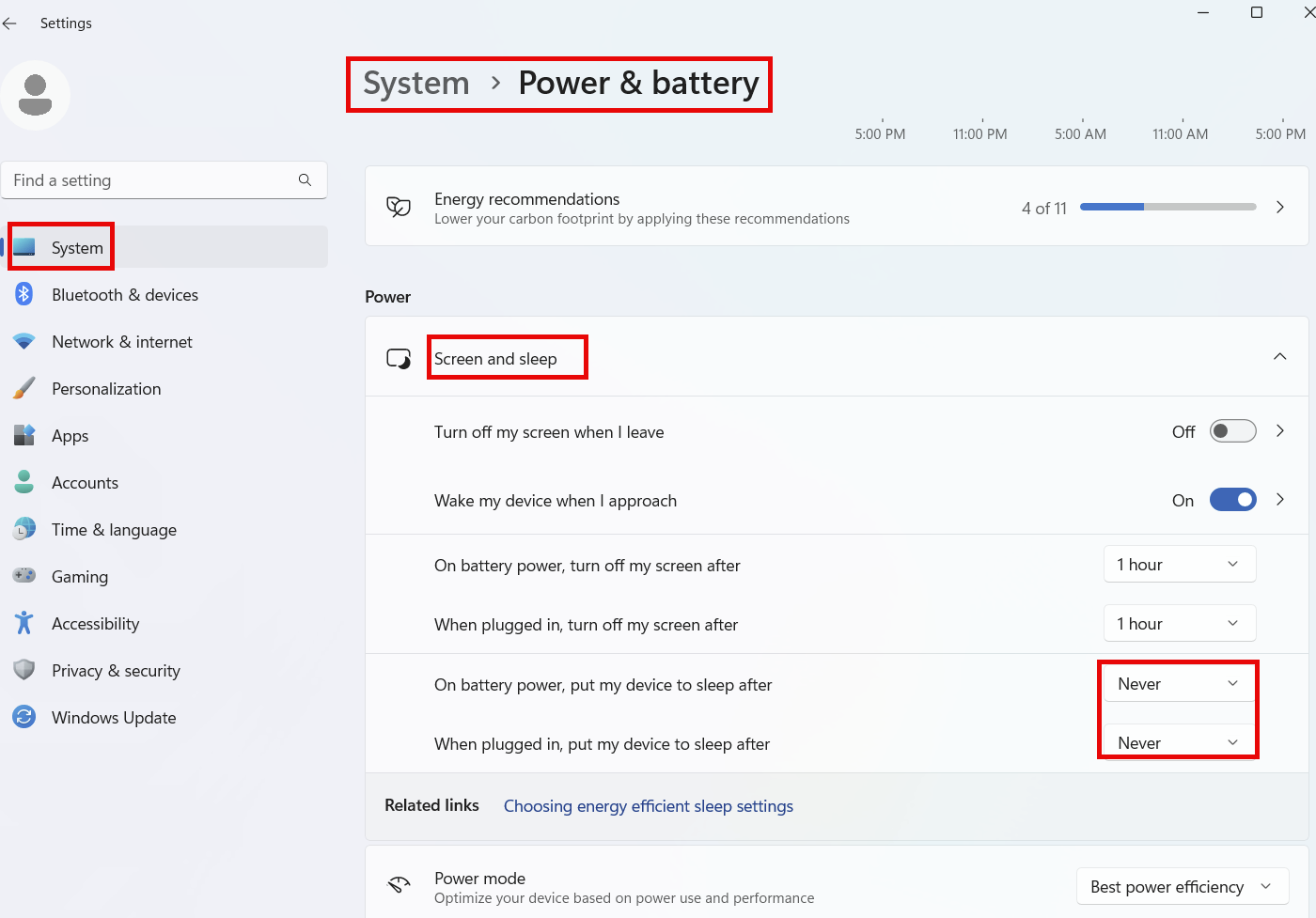
A2: You can refer to the following settings: System -> Power & Battery -> Screen and sleep ->When plugged in or On Battery power,put my device to sleep after->Never.
Q3: How can I project what I see in the M1 glasses onto another device (like a monitor) so that others can view the same content?
A3: Use the shortcut Ctrl+Alt+E to bring up the Unity window. The image in this window is what you see through the glasses. If you have already connected to another display via HDMI or wirelessly, you can drag this window to the designated display.
Q4: When AirVision is enabled, what should I do if the text in the glasses is too small?
A4: Here are three ways you can enlarge the text:
(1) In Windows settings: Right-click on the desktop >> Display settings >> Display >> Scale & layout >> Change the display scaling from 100% to 125%.
(2) In AirVision settings: In the distance settings, move the virtual screen closer to make the text larger.
(3) In browser settings: For example, in Edge, hold down Ctrl and scroll the mouse wheel to zoom in on the display within the browser.
The above three methods can help you adjust the text display size to a comfortable level.
Q5: Why does the screen keep flickering and repeatedly zooming when I start the AirVision app?
A5: This is because the application is performing a series of display settings and creating other virtual screens in the background. This continuous switching causes a phenomenon similar to flickering and zooming. Please wait patiently; the screen will stabilize after the settings are complete.
Q6: Why does the laptop fan run at high speed and the system performance become sluggish when I start the AirVision app?
A6: This is because each virtual window consumes graphics card resources, just like a regular display. The more windows there are, the higher the GPU load becomes. The laptop system automatically increases fan speed to dissipate internal heat. You can improve this in two ways:
(1) Enable "Light Load Mode," which partially reduces the system load.
(2) Upgrade Windows to 24H2, as Windows 24H2 optimizes the screenshot process, which significantly reduces the GPU load.
Q7: How do I activate demo mode? And how do I switch back to normal mode?
A7: The AirVision app has a built-in demo mode for convenient demonstration by channel partners.
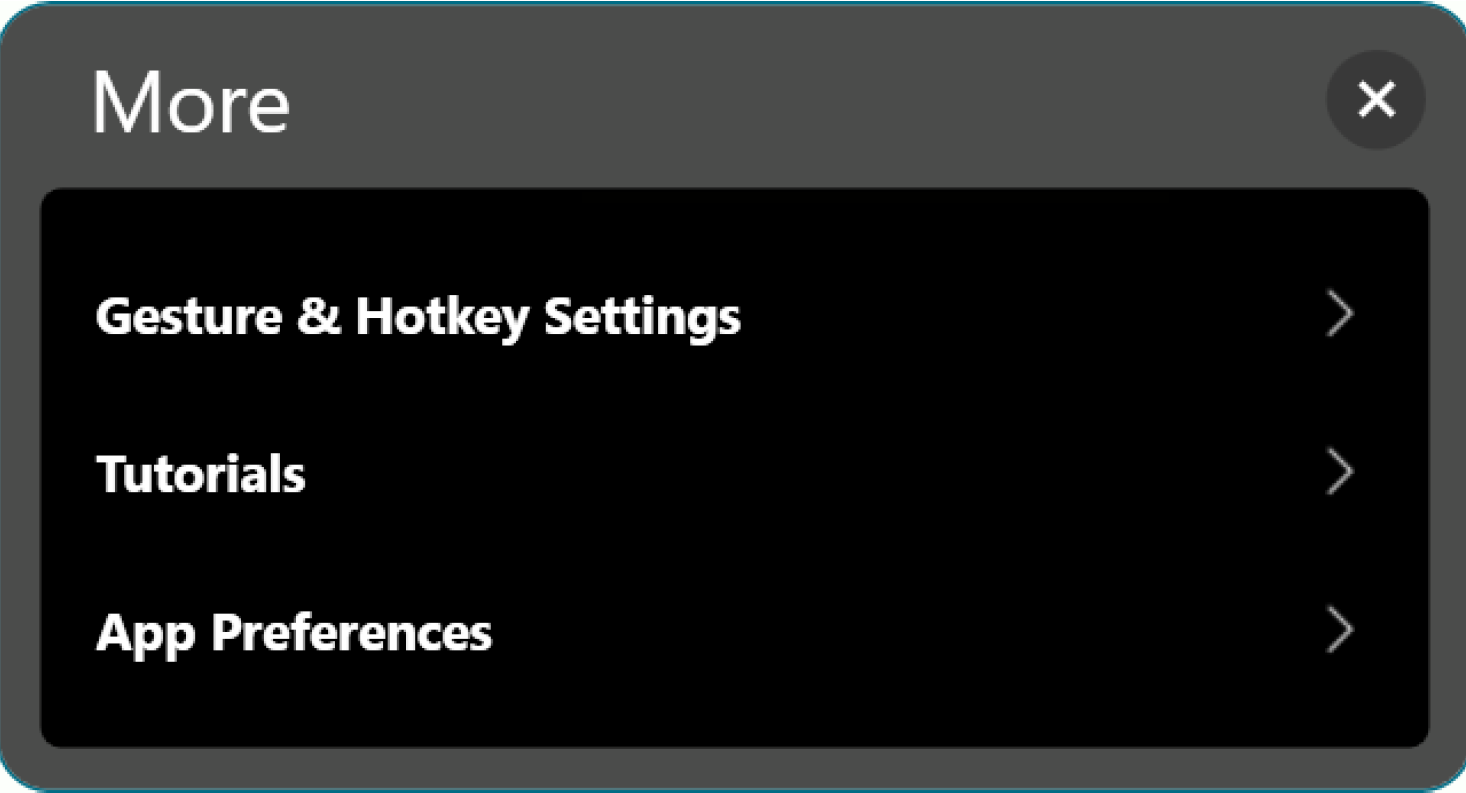
To activate it, go to "More -> Startup -> Tutorials."
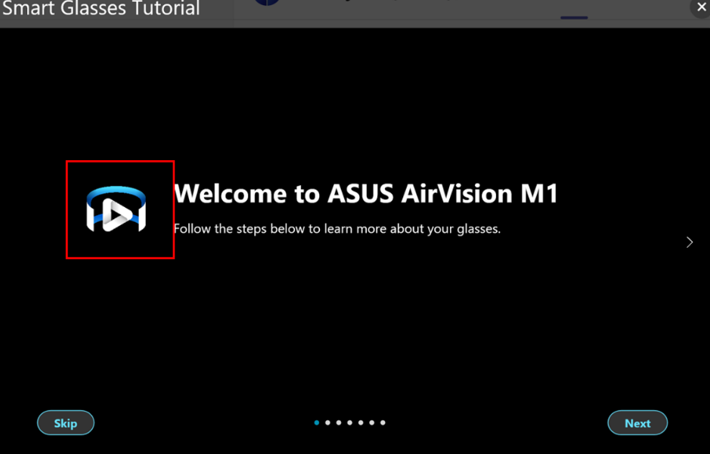
Then, on the icon in the red box, press the key combination Ctrl+Alt+D + click the left mouse button 12 times in quick succession. The following icon will appear, indicating that you have switched to demo mode.
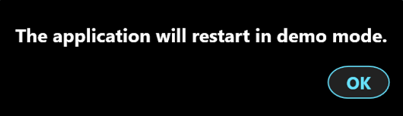
To switch back to normal mode, follow the same steps as above. After completing the process, the same icon will appear, indicating that you have switched back to normal mode.